This tutorial walks you through a complete content update using the editor. You’ll create a branch, make a change, share a preview for review, and publish your changes.Documentation Index
Fetch the complete documentation index at: https://mintlify-mintlify-copy-branch-name-1777567697.mintlify.app/llms.txt
Use this file to discover all available pages before exploring further.
Create a branch
A branch is a temporary copy of your content. It’s where you make your changes without affecting your live site.Think of branches like drafts. You can merge them into your live site or safely discard them if you choose not to make the changes.Working on a branch keeps your edits separate from your live site until you’re ready to share the content with your users.
-
In the editor toolbar, click the branch name (usually
main).
- Click Create new branch.
-
Enter a name that describes your change, like
update-quickstart. - Click Create branch.

Make your changes
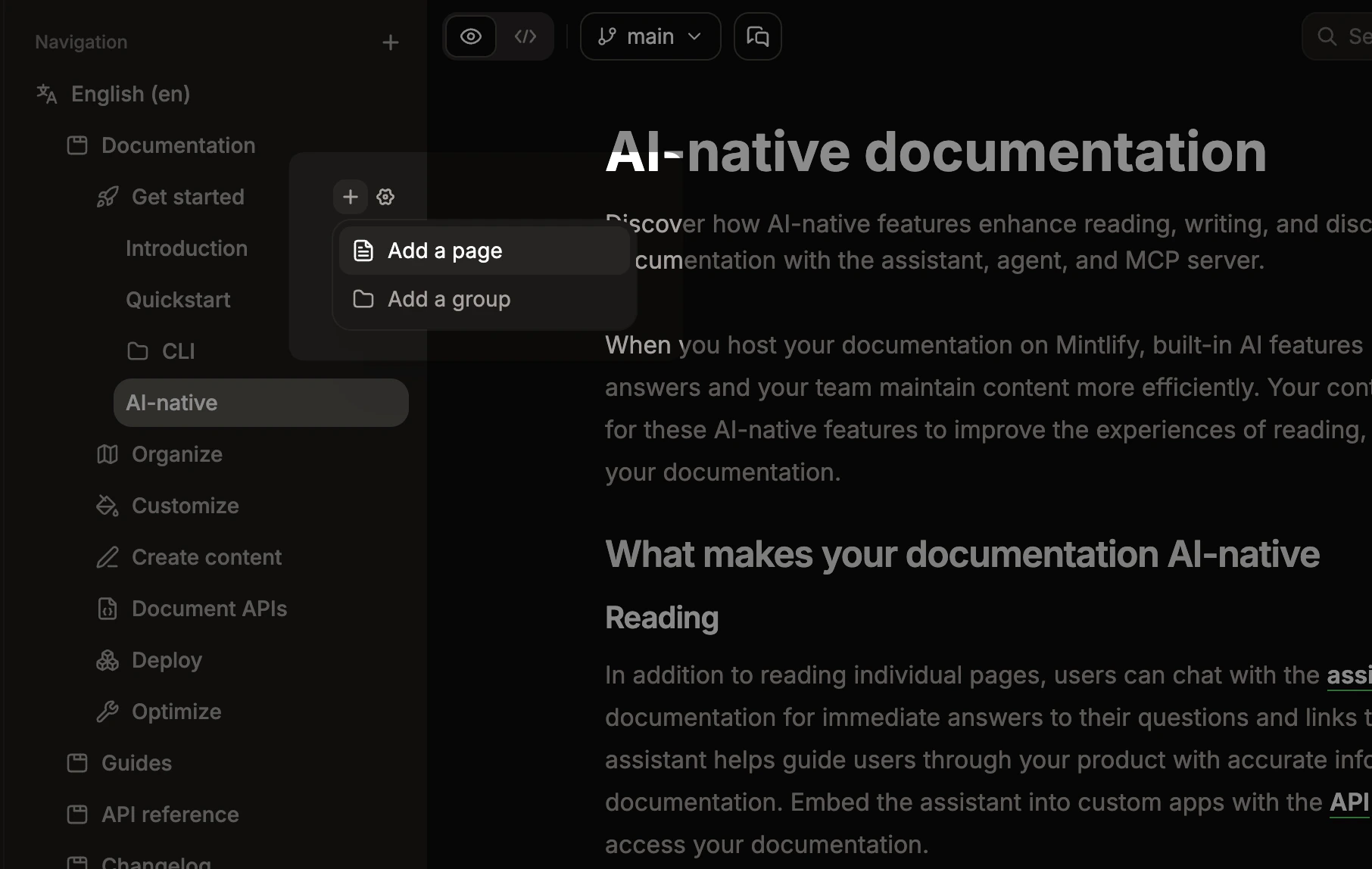
Edit an existing page or create a new one.To edit a page: Click it in the navigation sidebar to open it. Type directly in the editor to add content. Press / to insert components, images, or other content.To create a page: Click the plus button next to the navigation group where you want to add the page, then click Add a page and enter a filename.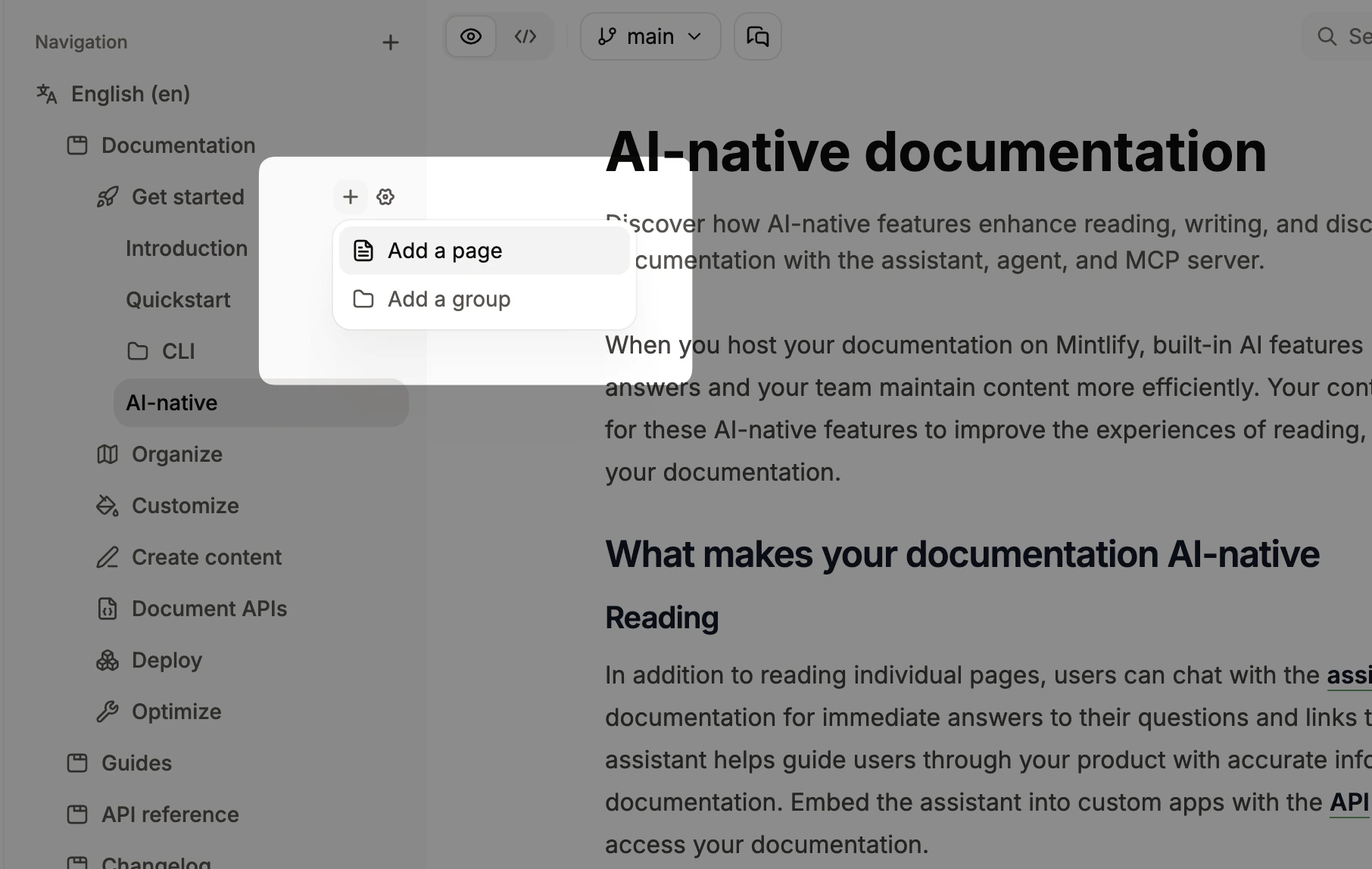
Publish your branch
To review your changes, you must create a pull request. A pull request is a proposal to merge your changes into the main branch that your site is built from.When you publish your branch, you make it available for review by your team. The changes only appear on your live site if you merge the pull request.
-
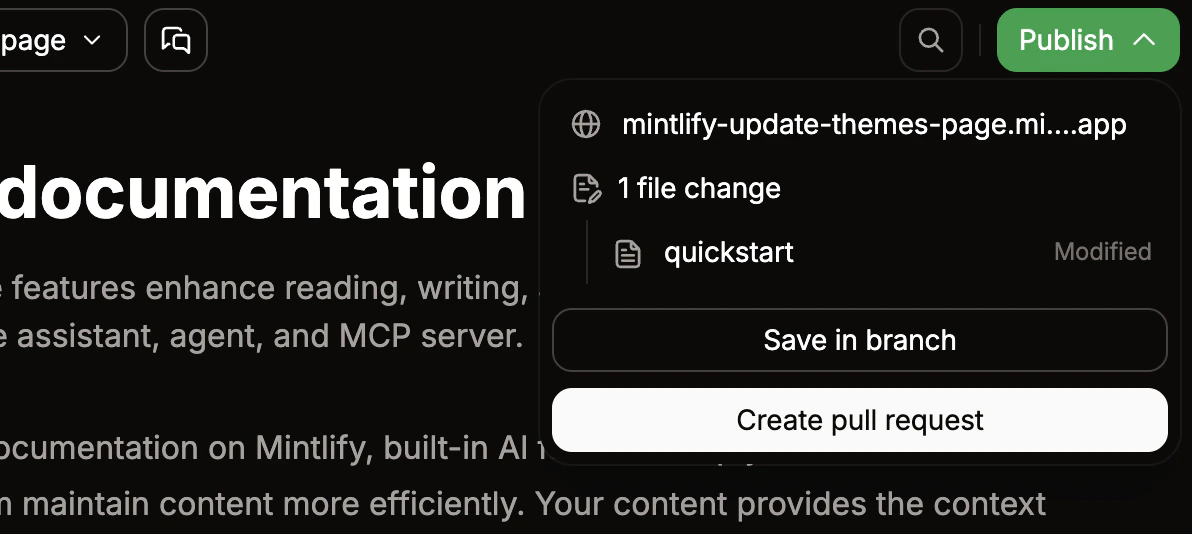
Click Publish in the toolbar to open the publish menu.
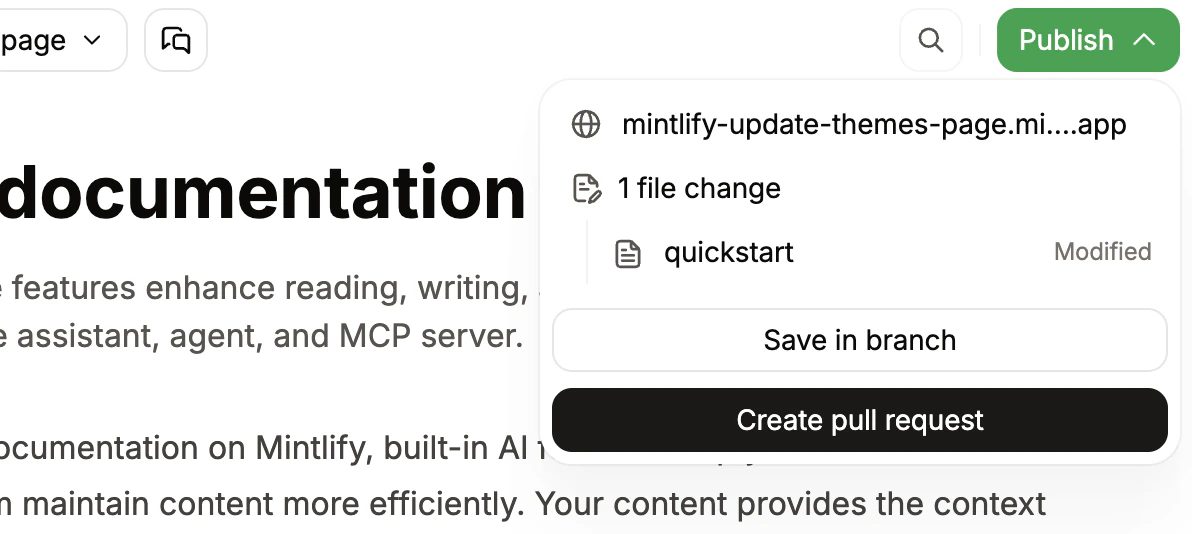
- Optionally, click any changed file in the list to view and compare your edits against the published version.
- Click Save in branch to save all changes on your branch.
- Click Create pull request. Add a title and description, then click Publish pull request.
- Continue to GitHub to view your pull request and review your changes.